1. Getting started
Open the simulator address in a web browser. As in the original program, the Welcome message is shown first; click OK to see the main screen. No installation or login is required.
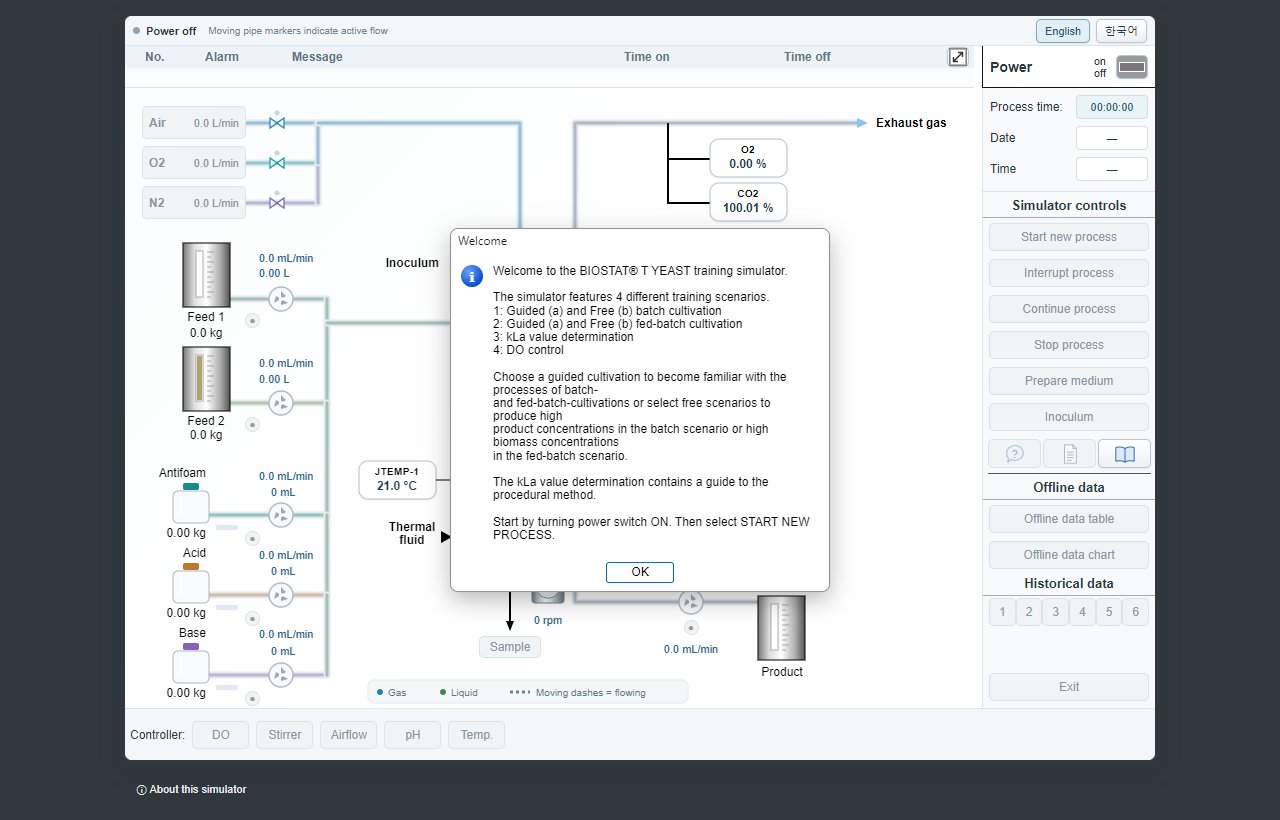
The main screen shows the controlled unit as in the original: the reactor, gas supply (valves, mass flow controllers), probes, pumps and media tanks in their positions relative to the reactor. It is divided into four areas.
- ① Header: alarm list and screen size button
- ② Simulation controls: power, start/stop process, medium, inoculum, information buttons, offline and historical data
- ③ Work area: process diagram and process values
- ④ Controller area: controller buttons and remaining time
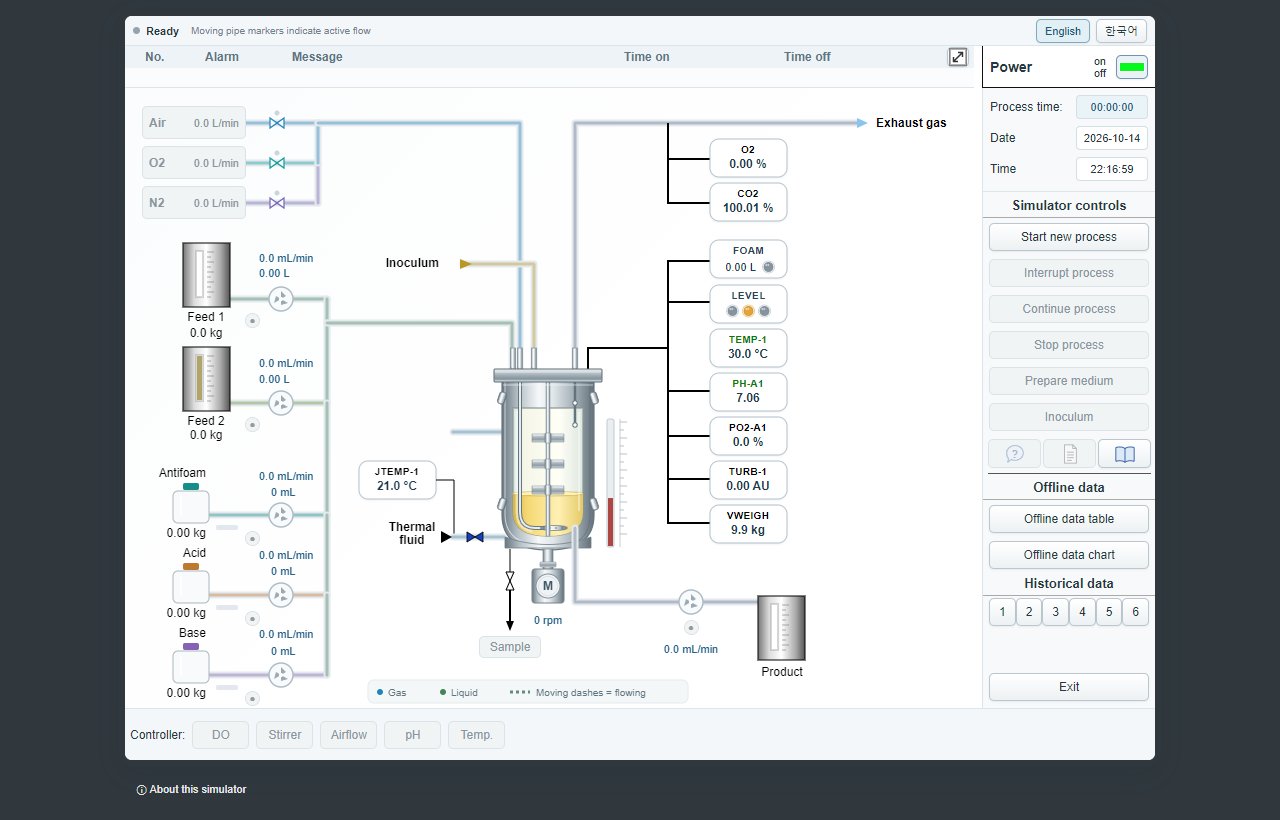
Use the English / 한국어 buttons at the top to switch the language. The dialogs and history windows of the original program stay in English like the original; guide messages and the main screen follow the selected language.
2. Principles of operation
2.1 Header
The header shows the alarm list. An alarm is recorded when reactor level, foam, temperature, pH or dissolved oxygen (pO2) leaves its limits (LL/L/H/HH). Each row shows the number, the alarm name, the original message with the process value and limit at that moment, and the time on and time off; alarms that are still active are highlighted.
The screen size button (⤢) at the right switches the browser full screen on and off.
2.2 Simulation controls
- Use the power switch to turn on the simulator.
- Process time, date and time are displayed.
- Start new process opens the dialog to start a training scenario.
- Interrupt process / Continue process pause and resume the running simulation.
- Stop process terminates the current simulation run.
- Prepare medium and Inoculum set the medium and the inoculum.
- Information buttons: last message, experiment description, manual
- Offline data table and chart, Historical data 1–6, TS3 - kLa (kLa scenario only)
- Exit switches the simulator off; it is enabled while the power is on and no process is running.
Active buttons have dark text, inactive buttons grey text. In the guided scenarios the next button to use blinks with a green frame.
2.2.1 Power on and start a process
- Click OK in the Welcome message.
- Switch the power on with the switch at the top right.
- Click Start new process to open the scenario selection.
- Click the desired training scenario; the simulation is initialised and started.
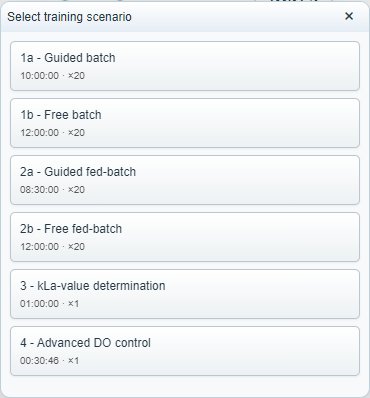
- 1a - Guided batch (TS1a)
- 1b - Free batch (TS1b)
- 2a - Guided fed-batch (TS2a)
- 2b - Free fed-batch (TS2b)
- 3 - kLa-value determination (TS3)
- 4 - Advanced DO control (TS4)
Starting a new process clears the data of the previous experiment. Export the data you need first.
2.2.2 Interrupt, continue, stop
Interrupt process is only active while a simulation runs; Continue process resumes it. Stop process ends the current experiment after a confirmation. At the end of a scenario the process stops by itself with the guide box "Process stop." / "Process end."; the recorded data stay available until a new experiment is started or the page is reloaded.
2.2.3 Prepare medium
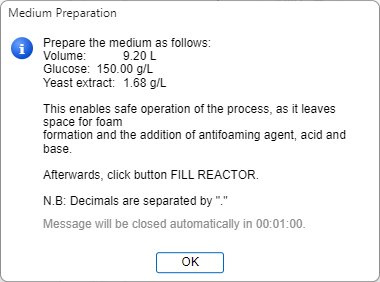
In the Prepare Medium window set the starting volume, glucose and yeast extract concentration according to the process description. A value is applied with the Enter key or when you leave the field. The permitted range is shown below each value and a green check mark appears when the value is within it.
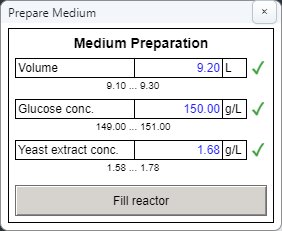
When all values are within range, Fill reactor is enabled; it fills the reactor and closes the window.
2.2.4 Inoculate
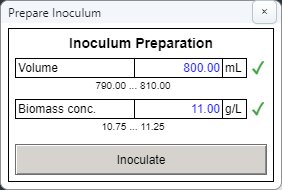
Set the inoculum volume and biomass concentration. Inoculate is enabled when the values are within range; it feeds the inoculum to the reactor and closes the window.
2.2.5 Information buttons
- ? (last message): shows the most recent guide message again.
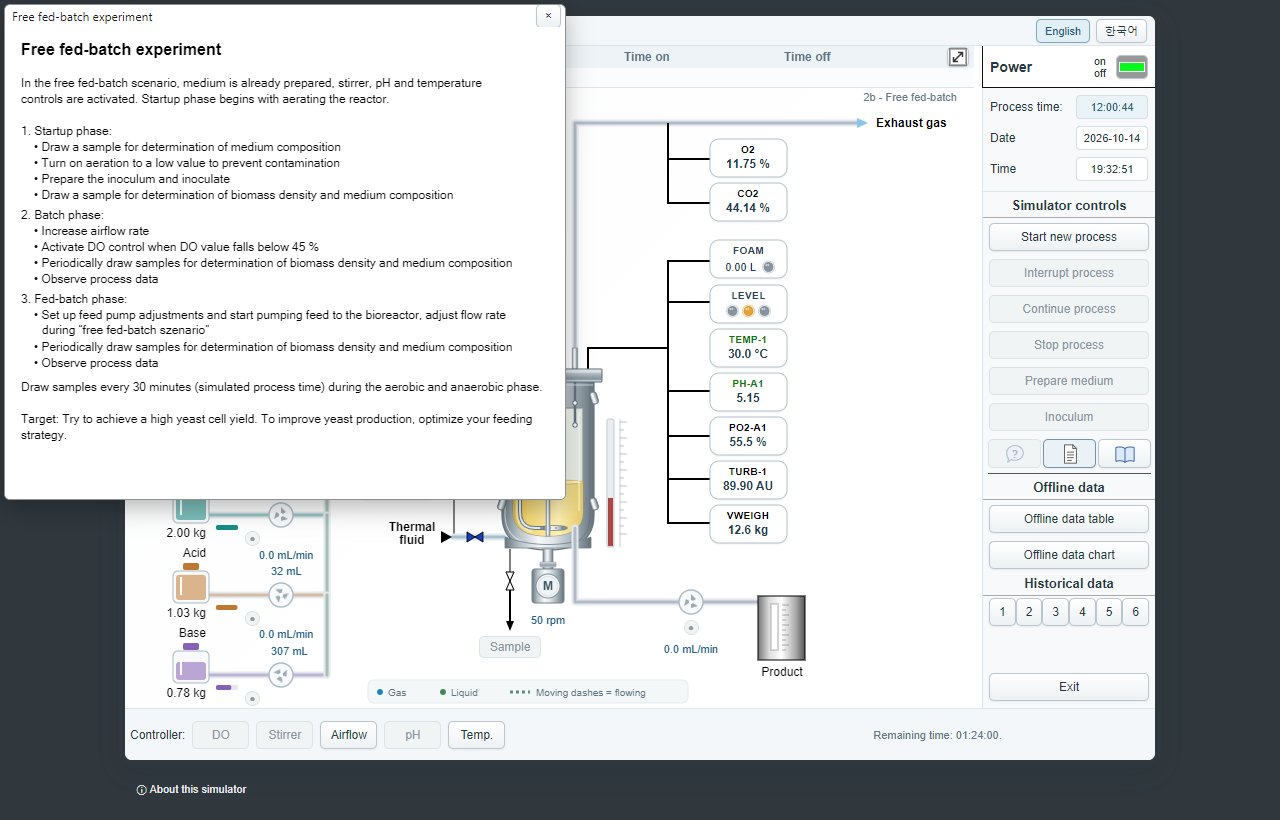
- Document icon (experiment description): opens the description page of the running scenario.
- Book icon (manual): opens these instructions.
2.2.6 Offline data
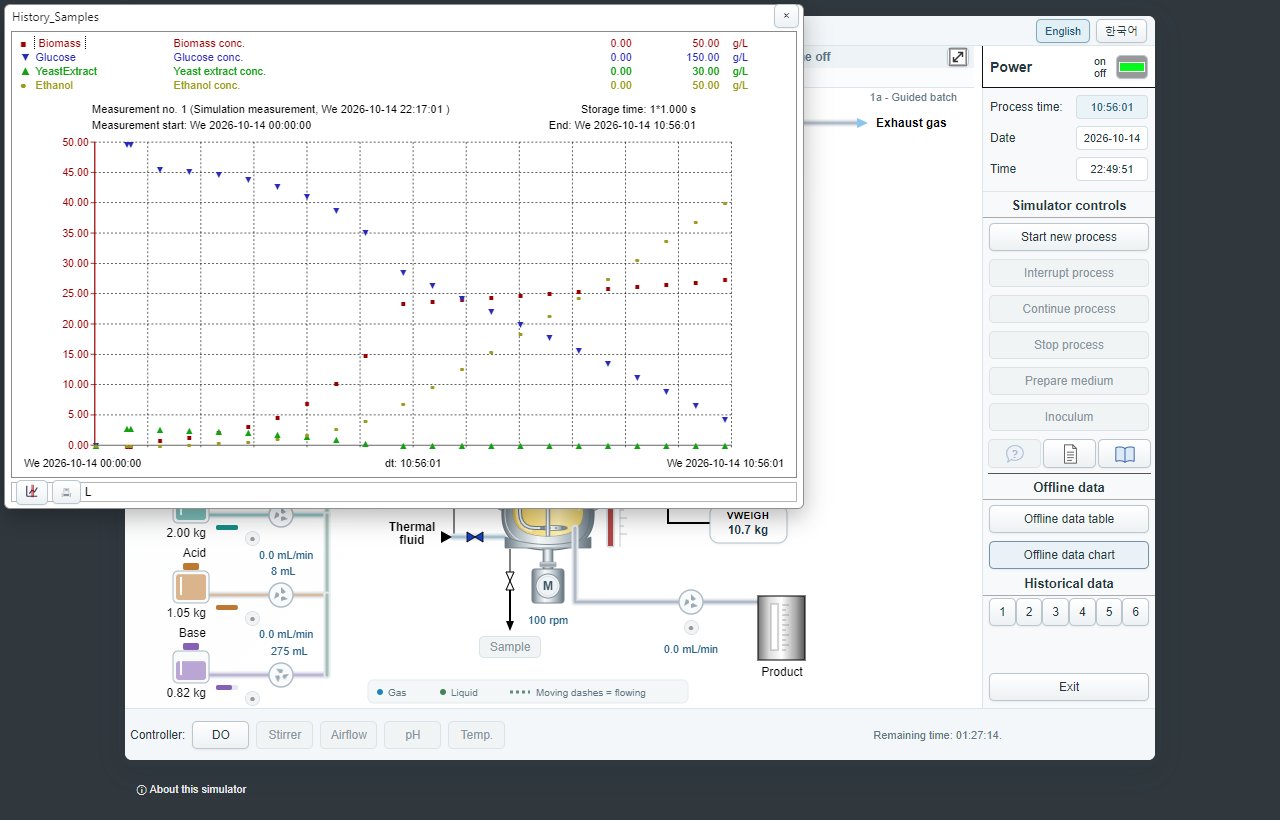
Biomass, glucose, nitrogen source (yeast extract) and ethanol cannot be measured continuously; they are obtained from samples. These offline data are shown as a table and a chart. Draw a sample with the Sample button in the work area; the analysis is recorded about 30 s (process time) later.
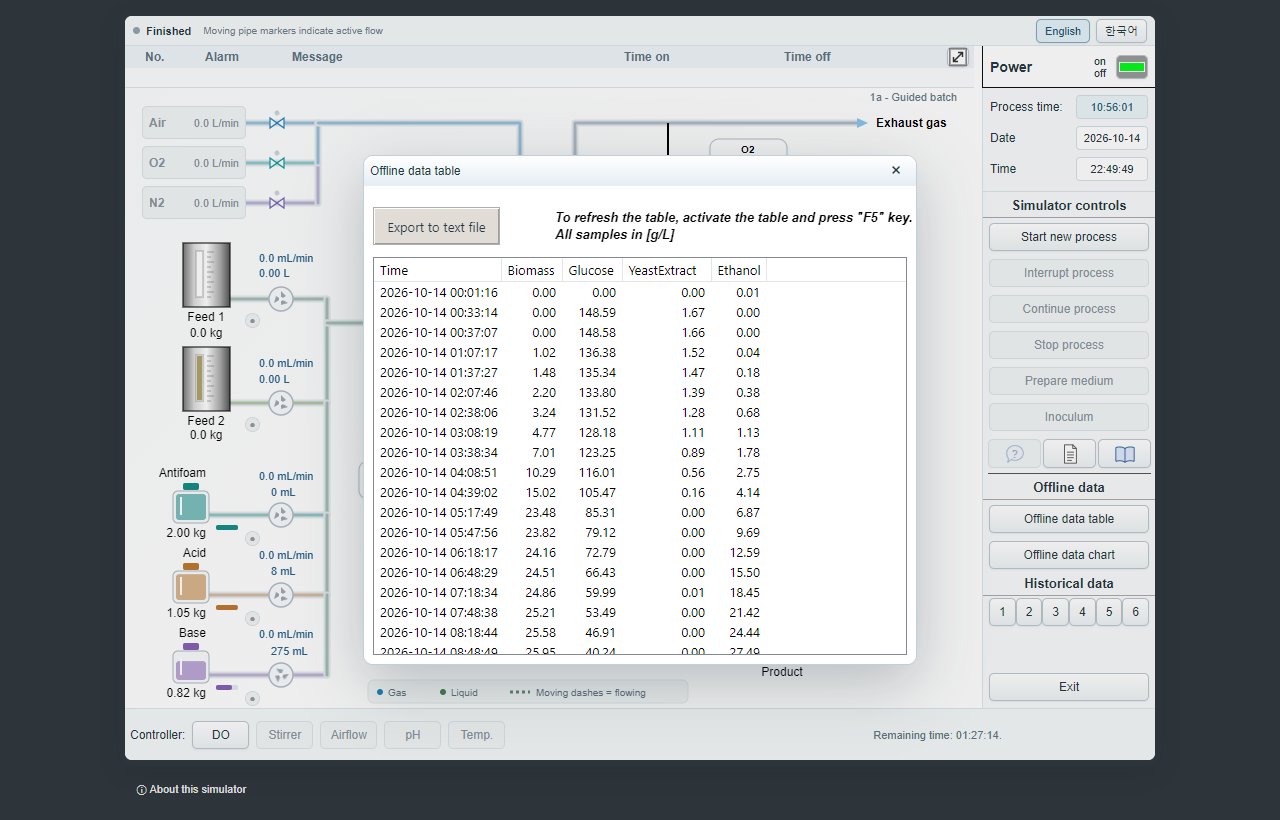
- If the table is open when a sample is drawn, click into the table and press F5 to refresh it.
- Export to text file saves the table as a text file (UTF-16, semicolon separated).
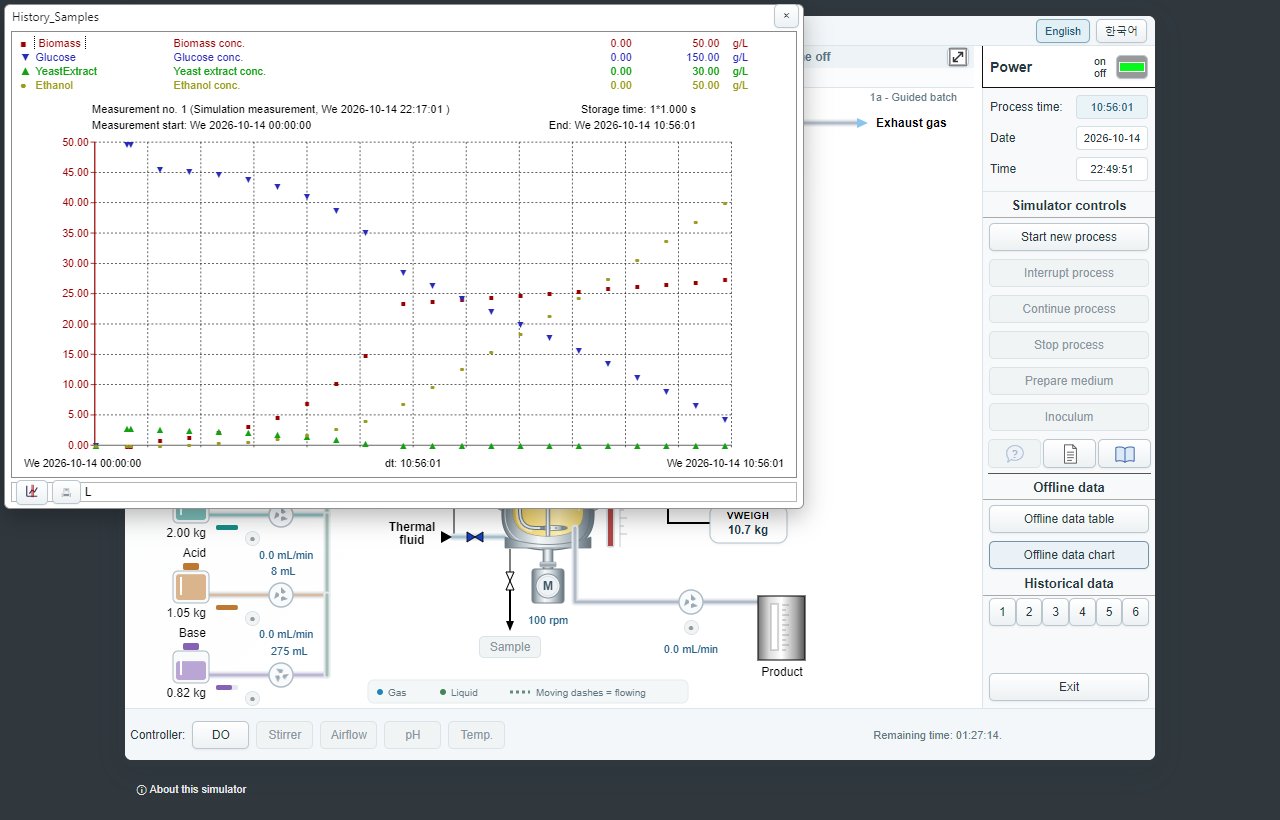
As in the original, the offline data chart shows the samples as points. Double-click a signal name to switch its representation: points → polygon → spline → hidden. See 2.2.7 for the chart operation.
2.2.7 Historical data
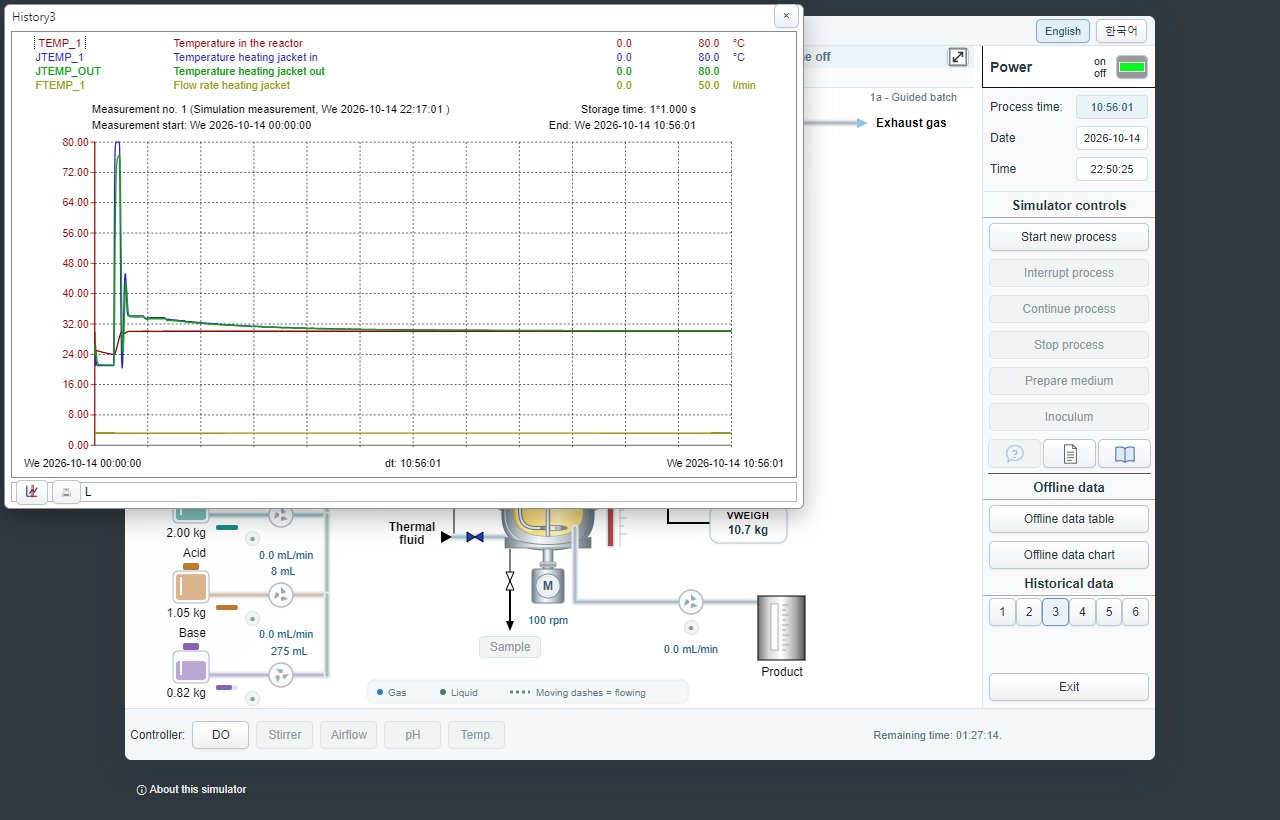
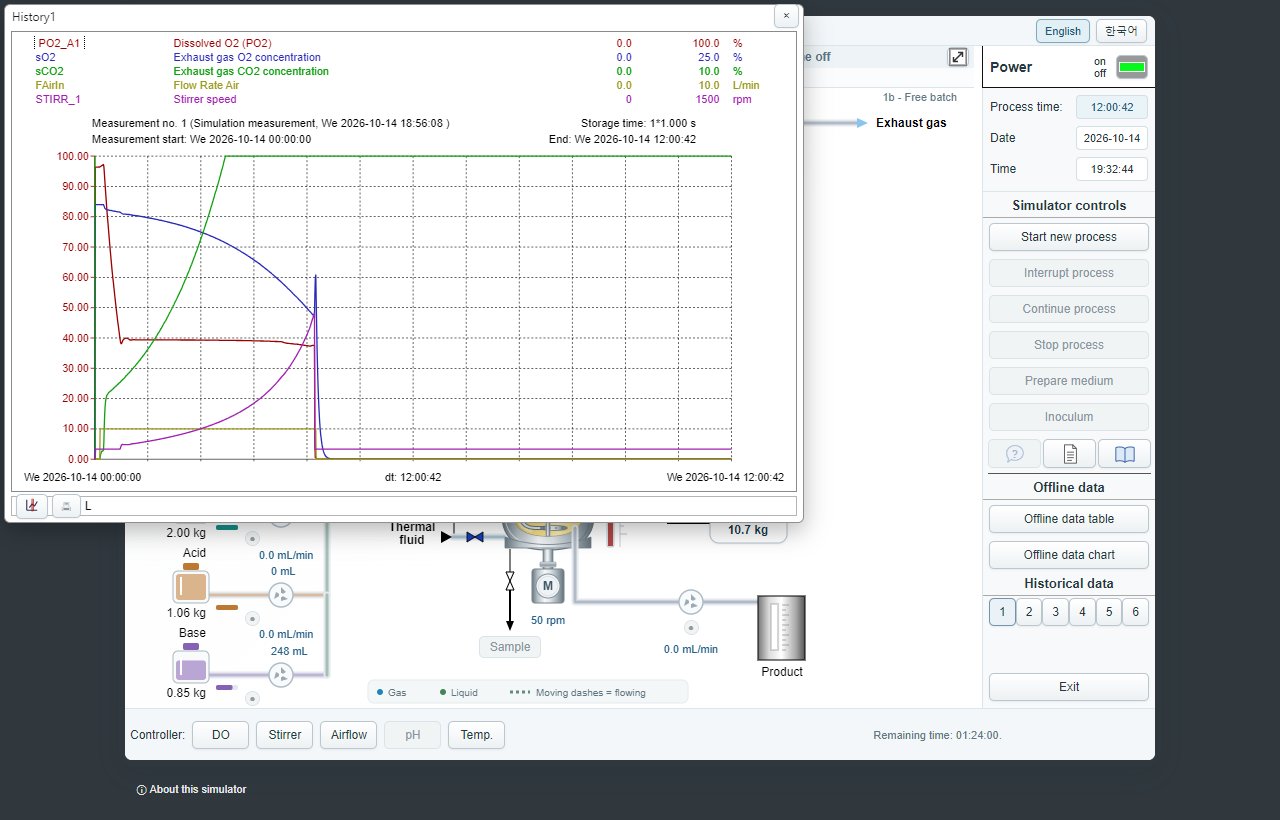
Process values are stored continuously every second. The buttons Historical data 1–6 open graphs of different signal groups. The window has four areas.
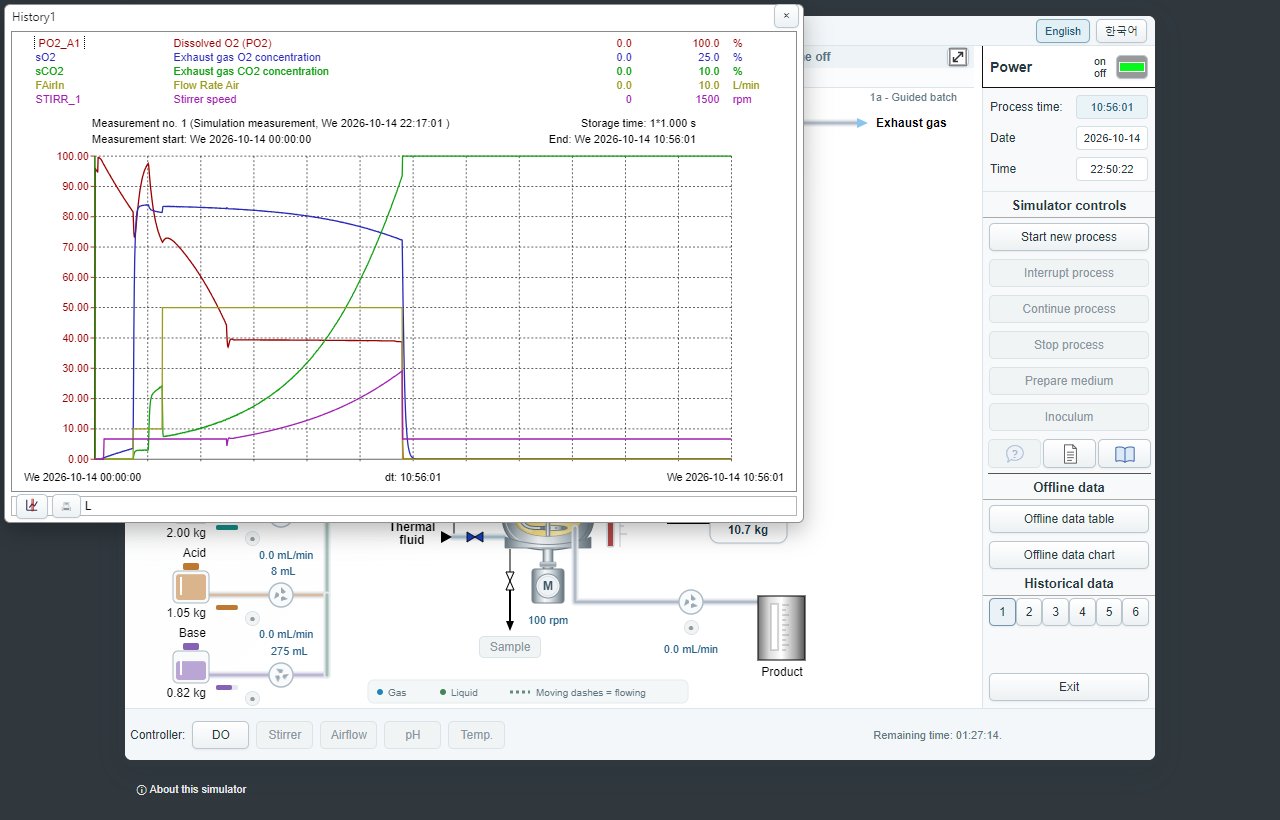
- ① Signal list: name, description, displayed range (min, max) and unit. Click a name to label the Y axis with that signal's range and colour; double-click to switch polygon → steps → hidden.
- ② Measurement description: measurement number and the real date and time it started, storage time (1 s), measurement start (process time from 0:00 of the day) and end.
- ③ Graph: every curve is drawn over its own range. Below the middle of the time axis the duration (dt) of the displayed range or the ruler time is shown.
- ④ Toolbar: ruler on/off and print.
Operating the graph
- Click the graph to show the time and the value of the selected signal at that point.
- Hold the left mouse button and drag to measure time (dt), value change (dy) and slope (dy/dt); a tangent is drawn.
- Press SPACE to cycle the slope unit /h → /min → /s.
- Press L to toggle capturing the selected curve with the cursor ("lasso", on by default).
- The mouse wheel zooms the time axis; double-click the graph to return to the whole measurement.
- With the ruler on, a double line can be moved with the mouse, cursor keys or Page up/down; the signal list shows the values at that time.
| Button | Signals |
|---|---|
| 1 | PO2_A1 dissolved oxygen, sO2 exhaust O2, sCO2 exhaust CO2, FAirIn air flow, STIRR_1 stirrer speed |
| 2 | PH_A1 pH, TEMP_1 reactor temperature, VWEIGH weight of reactor contents, sVFoam foam volume |
| 3 | TEMP_1 reactor temperature, JTEMP_1 jacket inlet temperature, JTEMP_OUT jacket outlet temperature, FTEMP_1 jacket flow |
| 4 | PO2_A1 dissolved oxygen, FN2In N2 flow, FO2In O2 flow, FAirIn air flow, STIRR_1 stirrer speed |
| 5 | FSubstrate1 substrate feed, FAntifoam antifoam, FAcid acid, FBase base |
| 6 | FSubstrate1 substrate feed, FProduct product, PO2_A1 dissolved oxygen, TURB_1 turbidity |
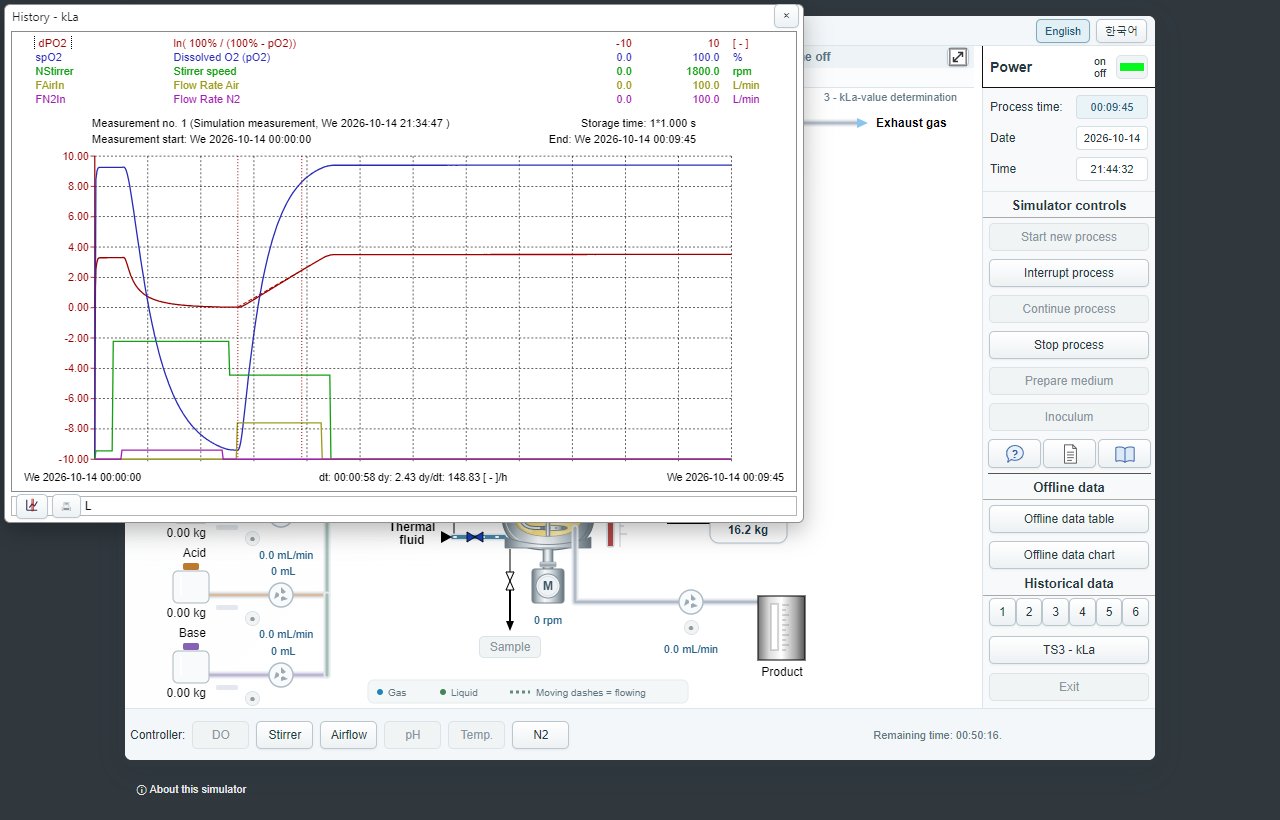
| TS3 - kLa | dPO2 = ln(100/(100-spO2)), spO2 dissolved oxygen, NStirrer stirrer speed, FAirIn air flow, FN2In N2 flow |
2.3 Work area
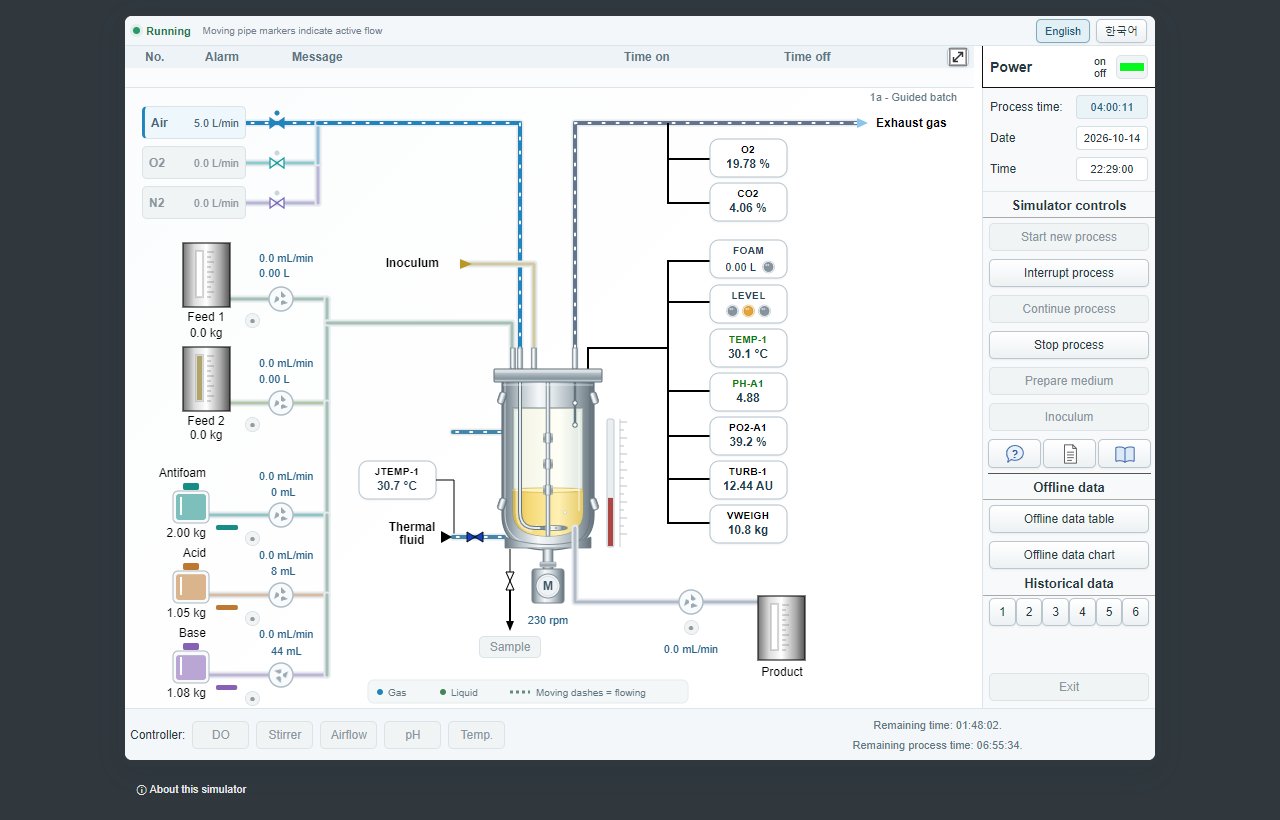
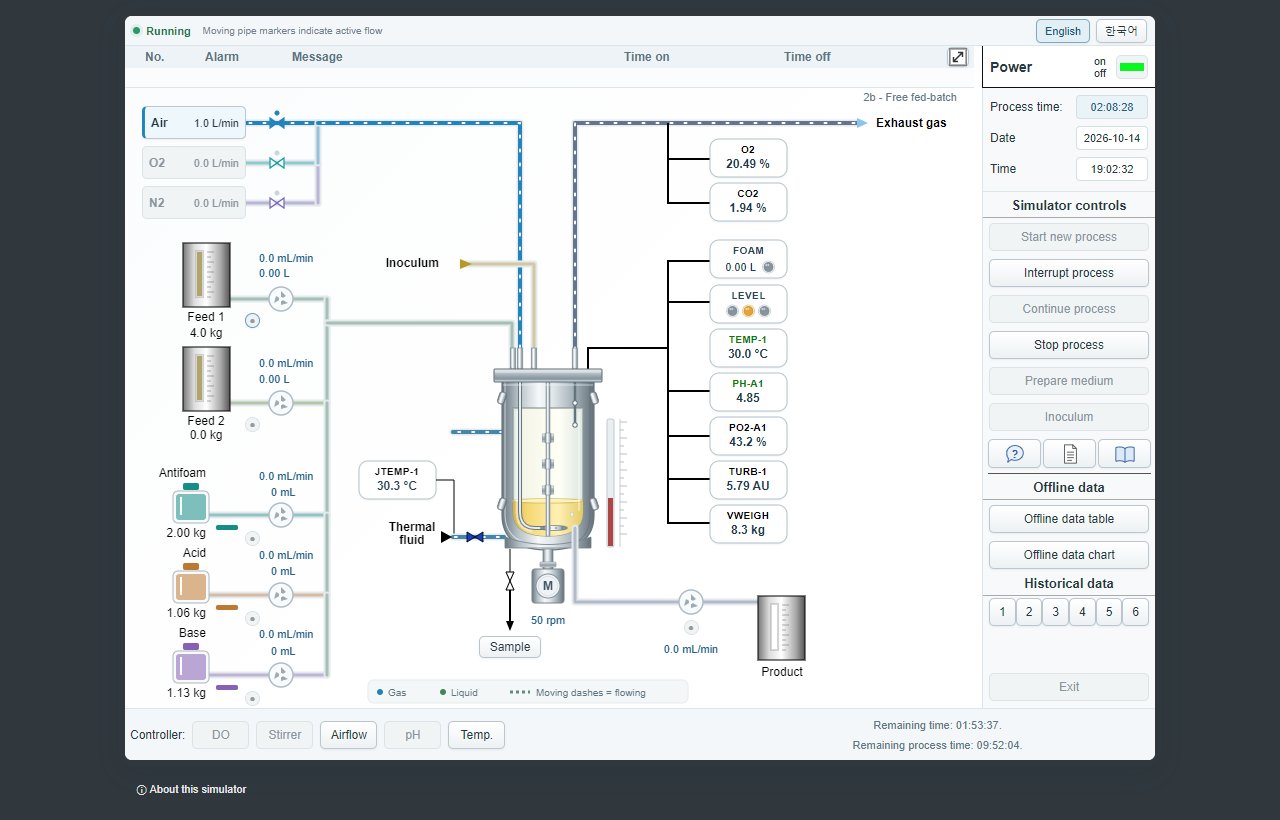
The left part shows everything fed into the reactor. Air, oxygen and nitrogen come from the gas mixing station; flow rates are given in L/min. Below are the substrate tanks Feed 1 and Feed 2 and the antifoam, acid and base tanks with the remaining amount (kg), flow rate (mL/min) and total amount fed. Feed 2 is not used in these scenarios.
The process values are shown next to the reactor.
| Display | Meaning |
|---|---|
| O2 / CO2 | oxygen and carbon dioxide in the exhaust gas |
| FOAM | foam volume |
| LEVEL | reactor level lamps |
| TEMP-1 | reactor temperature |
| PH-A1 | pH |
| PO2-A1 | pO2 saturation (DOT) |
| TURB-1 | turbidity of the broth |
| VWEIGH | weight of the reactor contents |
Draw a sample (20 mL) with the Sample button; biomass, glucose, nitrogen and ethanol are analysed and recorded as offline data.
The moving pipe markers and colours are a display aid of the web version. They move only while there is a flow; all numbers shown are signals of the original program.
2.4 Controller area
The DO, Stirrer, Airflow, pH and Temp. buttons in the controller bar (N2 in TS3, Trend in TS4) open the controller windows. The TEMP, pH and PO2 displays next to the reactor open the same controllers.
- DO controller: mode (OFF/AUTO) and setpoint; changes apply immediately.
- STIRRER: mode and setpoint; applied with OK.
- AIRFLOW: mode and setpoint; applied with OK.
- pH and temperature controller: auto / man (off) and setpoint; changes apply immediately, controller parameters and alarm limits are read-only.
- N2: only in the kLa scenario; applied with OK.
- Trend: online graph of the important process values in the DO control scenario (TS4).
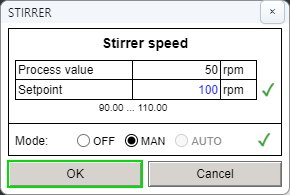
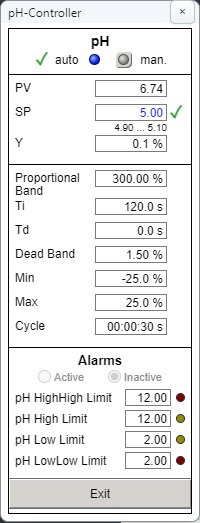
If a setpoint range is restricted, the range is shown below the table and OK stays disabled outside it. At the right the remaining time of the run (real time) and, where applicable, the remaining process time (accelerated simulation time) are shown.
2.5 Guide messages
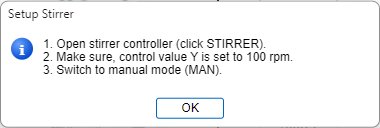
In the guided scenarios the original guide messages appear step by step. Read the message and click OK (or Yes/No); the next action is then marked with a green frame. Some messages close automatically after the time shown. Use the ? button to see the last message again.
3. Training scenarios
The scenarios teach common methods for yeast culture bioreactors: batch cultivation (guided a, free b), fed-batch cultivation (guided a, free b), kLa value determination and advanced dissolved oxygen (DO) control.
3.1 TS1a – Guided batch experiment
In a batch cultivation all substrates are provided at the beginning; no substrate is fed and no product is removed during the run. This scenario starts with an aerobic growth phase with aeration and DO controlled by the stirrer speed. Four hours after inoculation the air flow is turned off to start the anaerobic ethanol production phase, and the stirrer speed is reduced to limit foam and energy demand.
Objective: become familiar with the batch process and the typical operator actions, and monitor the important process values.
- Switch the power on and select 1a - Guided batch in Start new process.
- Follow the guide messages: prepare the medium (9.20 L, glucose 150 g/L, yeast extract 1.68 g/L) → stirrer 100 rpm (MAN) → pH control AUTO (5.00) → temperature control AUTO (30.0 °C) → check Historical data 3 → sample → air 1.0 L/min.
- After inoculation (800 mL, 11.00 g/L) draw a sample, increase the air flow and switch the DO control to AUTO when DO falls below 45 %.
- When asked to switch to anaerobic conditions: DO control OFF, low stirrer speed, air OFF.
- Draw a sample every 30 minutes (process time) to follow the growth.
The run stops 10 hours (process time) after inoculation and runs 20 times accelerated. Typical final offline values from the original instructions: biomass about 22.7 g/L, glucose about 35.5 g/L, yeast extract about 0.01 g/L, ethanol about 32.7 g/L (results vary with the operation).
3.2 TS1b – Free batch experiment
Repeat the batch experiment and decide yourself when to switch from the aerobic to the anaerobic phase. The objective is to optimise the ethanol production by finding the best temperature setpoint and switching time.
| Item | Start value |
|---|---|
| Volume | 9.2 L |
| Glucose | 150.0 g/L |
| Nitrogen | 1.68 g/L |
| Acceleration | 20-fold |
| Inoculum | 800 mL, 11.00 g/L |
Temperature, pH and DO control are automatic from the start (pH 5.0, 30.0 °C, DOT 40 %). Check the medium with a sample, inoculate when asked and switch to anaerobic conditions whenever you decide: DO control OFF → stirrer about 50 rpm → air OFF. Draw samples every 30–60 minutes. The run stops after 12 hours (process time).
3.3 TS2a – Guided fed-batch experiment
Fed-batch cultivations reach high cell densities at low substrate concentrations (e.g. baker's yeast). After a short batch phase a glucose solution is fed at a constant rate; no product is removed.
- Select 2a - Guided fed-batch in Start new process.
- Follow the guide: prepare the Feed 1 tank and the medium, the controllers and the inoculation.
- When the feed phase is announced, set cycle and output (Y) in the Feed 1 - Control window and switch the pump on.
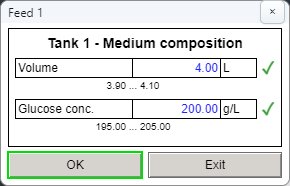
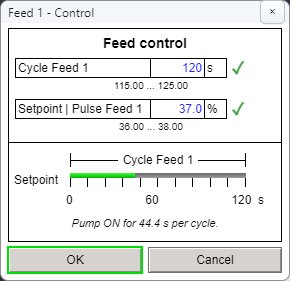
The run is limited to 8.5 hours (process time) at 20-fold acceleration. Glucose decreases in the batch phase, increases when feeding starts and decreases again as the biomass grows. Typical final values from the original instructions: biomass about 42.0 g/L, glucose about 0.0 g/L, yeast extract about 1.5 g/L, ethanol about 7.1 g/L.
3.4 TS2b – Free fed-batch experiment
Choose the feed concentration and the feed rate (profile) yourself to reach the highest cell mass within 12 hours.
| Item | Start value |
|---|---|
| Volume | 7.2 L |
| Glucose | 7.0 g/L |
| Nitrogen | 30.0 g/L |
| Acceleration | 20-fold |
| Feed 1 | 4.0 kg |
Click the Feed 1 tank to set the glucose concentration (0–350 g/L) and the pump symbol to open the pump settings (Feed 1 - Control). The pump is pulse-width controlled: within each cycle it runs for the output Y (%); the maximum flow is 30 mL/min. Example: Y = 37 % gives an average of 30 × 0.37 = 11.1 mL/min. A cycle of at least 60 s is recommended. The round button left of the pump switches it on and off.
3.5 TS3 – kLa value experiments
The kLa value describes the efficiency of the oxygen transfer from the gas into the liquid. The experiments show how kLa depends on the stirrer speed and the air flow rate. The run starts with 15.0 L, DO about 100 %, 30.0 °C and no acceleration.
- Strip the oxygen from the medium with N2 until pO2 is close to 0 %.
- Turn N2 off.
- Set the stirrer speed and air flow from the table (mode MAN, apply with OK).
- Wait until pO2 reaches about 100 % as oxygen dissolves.
- Repeat with other settings or end with Stop process.
| No. | Stirrer [rpm] | Air [L/min] | kLa [1/h] (original instructions) |
|---|---|---|---|
| 1 | 500 | 12.0 | 157 |
| 2 | 700 | 12.0 | 255 |
| 3 | 900 | 12.0 | 350 |
| 4 | 500 | 15.0 | 163 |
| 5 | 700 | 15.0 | 270 |
| 6 | 900 | 15.0 | 380 |
| 7 | 500 | 18.0 | 167 |
| 8 | 700 | 18.0 | 280 |
| 9 | 900 | 18.0 | 400 |
Evaluation: open the TS3 - kLa window and zoom with the mouse wheel into one recovery (about 2–10 minutes). Select dPO2, drag along its linear part to measure the slope and press SPACE until the unit is [ - ]/h. The slope dy/dt is the kLa value for that stirrer speed and air flow.
3.6 TS4 – Advanced DO control
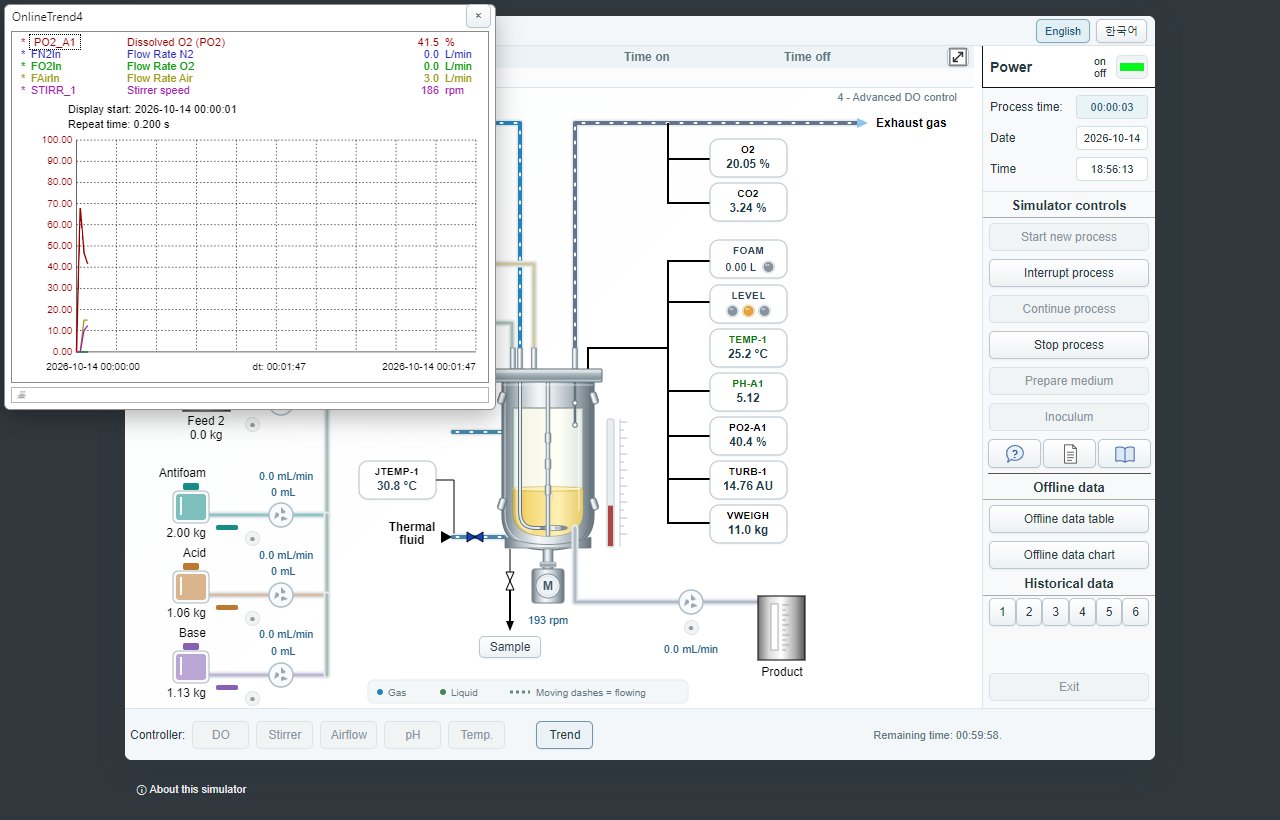
The run starts in the growth phase (volume 10.2 L, glucose 50.0 g/L, yeast extract 22.1 g/L, biomass 11.2 g/L). In part 1 keep the DO near the 30 % setpoint with the stirrer speed, in part 2 with the air flow. In part 3 the DO control runs automatically (Sartorius Advanced DO controller) and you observe the response for different proportional bands (Xp): a small Xp responds faster but overshoots briefly, a large Xp of 300 % approaches the setpoint slowly without overshoot.
The Trend button shows PO2_A1, the N2, O2 and air flows and the stirrer speed online.
4. Appendix
4.1 Requirements
- Current Chrome, Edge, Firefox or Safari
- Screen width of 1024 px or more recommended (full screen button available)
- No installation; all calculations run inside the browser.
4.2 Troubleshooting
- If a simulation cannot be started or the screen does not react, reload the page (F5). The reset procedure of the original program is not needed.
- Experiment data are kept only in the browser and are cleared by a reload or a new process. Keep the data you need with the offline table export or by printing the history windows.
- If a button does not react, check the process state (running / interrupted) and whether a guide message is open.
4.3 Differences to the original program
- Process calculation, sequences (Grafcet), recipes, guide messages, dialogs and history windows run or are taken from the original program.
- Display aids of the web version: moving pipe markers, Korean screens and messages, screen size button (browser full screen).
- The offline table export downloads a text file in the original format directly (no export dialog).
- Pressing Sample twice very quickly can keep the original sampling running; the web version counts a second press within 3 cycles once.